The blank box at the end of a good report
It's 6:40. The report is done and it's good — the options line up, the numbers are right, the fees are itemized the way this borrower will want them. Then you hit the message box, and you write "Hi Jane, attached is the analysis we discussed. Let me know if you have any questions." For the fourth time this week.
That sentence undersells everything behind it. You just spent twenty minutes choosing which options to show and which rows to include, and the email carrying all of it says nothing — not because you have nothing to say, but because it's 6:40 and the good version takes another ten minutes.
The send window is a real editor now
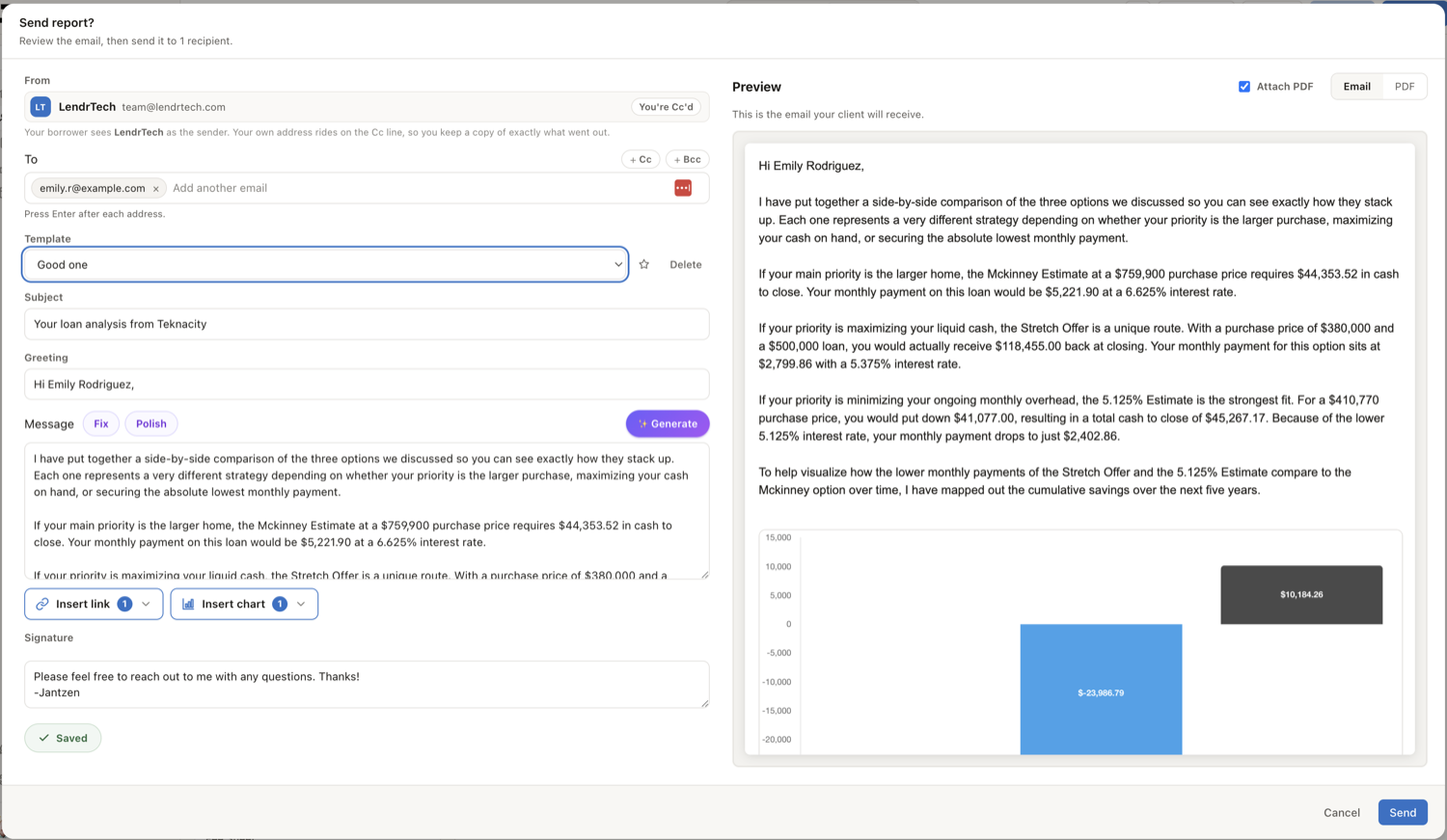
Click Send in the report builder and you get a proper composer: your message on the left, a live Preview on the right that updates as you type. The preview is the actual email — not an approximation of it — so what you're reading is what lands in the inbox. Flip the preview between its Email and PDF tabs to check the attachment too.
Everything in the message is yours to shape. The subject starts as a clean, borrower-friendly line rather than your internal report name. The greeting and the signature are edited separately from the body, so you can rewrite the note without touching your sign-off. Insert link and Insert chart drop the report link or a chart into the message as a labelled placeholder you can move or delete, and the preview shows the real thing in its place.
The To box opens with your client's address and takes everyone else who belongs on the email — a co-borrower, a spouse, the buyer's agent — each one as its own removable tag, with + Cc and + Bcc beside it for the people who belong on your side of the conversation. You're copied on every send, so you always keep a copy of what went out — and everyone you add gets the report link, which opens for whoever holds it.
And when you write a good one, keep it. Save as template stores the subject and message under a name; next time you pick it from the Template list and the window fills in. Templates save the wording, never the borrower — the greeting always resolves to whoever you're actually sending to, so a saved email can't carry last month's client into this month's send. Set one to Use by default and the window opens already written.
✨ Generate: the whole email, from the report you just built
Templates handle the emails you send often. The other kind — the one where this borrower is genuinely nervous about cash to close, or these two are first-timers who need it in plain words — is the one that eats your evening.
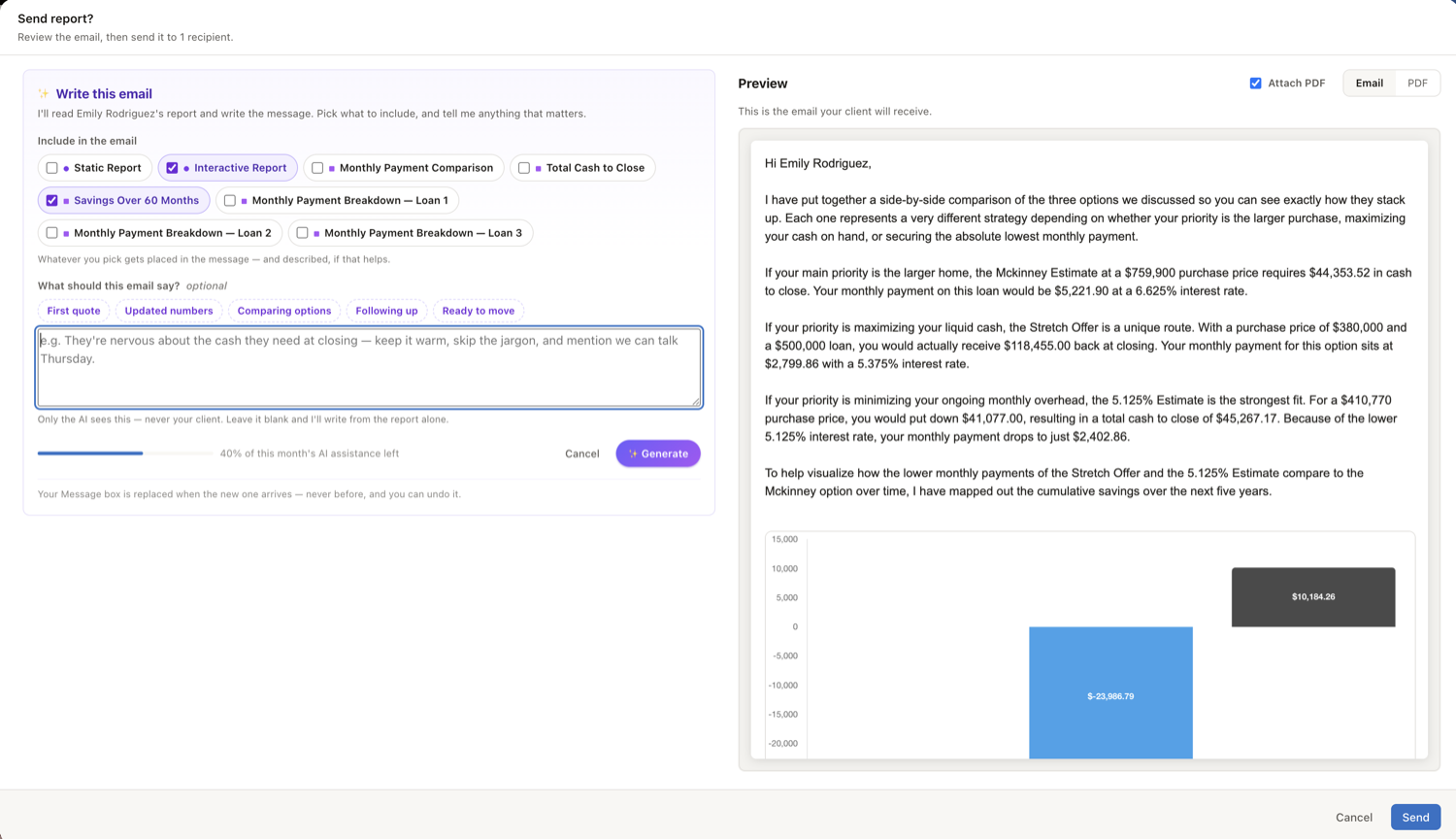
Click Generate above the Message box and the compose side becomes a short setup panel. Two things to give it, both quick:
Pick what to include. Every report link and every chart on this report shows up as a chip. Tick the ones you want, and they get placed in the message — and described in words, rather than dropped in cold.
Say what matters. The box under What should this email say? is optional, and it's the most useful control on the panel. It isn't a subject line or an outline. It's what you'd tell a colleague before they wrote the email for you: "They're nervous about the cash they need at closing." "First-time buyers, keep it plain." "Push option B and say why." Whatever you put there outranks everything else, so it genuinely changes what comes back. Only the AI ever sees it — your client never does.
Then Generate. It reads the whole report before it writes anything, and what comes back is a full message with a check to keep it, an ✕ to undo it, and Refine above it. Undo puts back exactly what was there before. Refine reopens the panel with your instructions and picks still filled in, so "same thing but warmer, and drop the cash-to-close chart" is a two-second edit rather than a restart.
Grounded in your report, and read by you
Here's the part that decides whether any of this is usable: the writer is handed the report itself. Not a summary of it — the actual labels and figures your borrower is about to receive, including the rows you chose to include and the data behind the charts you picked. So it can point out what a payment difference actually means for this borrower, or what closing day really costs, using the numbers already on the page.
Which is exactly why the last step is yours. Read the numbers in the email before you press Send. Nothing leaves until you do, the preview beside you is the real thing, and the message is the only part the AI touched — your subject, greeting and signature stay exactly as you set them.
Already have a draft you like? Fix and Polish work on the whole message — spelling and grammar, or flow and tone. Select any sentence and a small toolbar offers the same two plus Custom… for your own instruction, rewriting only what you highlighted. Every edit has an undo, and none of them can lose a link or a chart you'd included — the full set of rules is worth a skim.
What it costs you
AI writing draws on your monthly AI assistance — one shared pool for every place AI writes or builds for you in LendrTech, shown as a slim bar along the foot of the Generate panel and in full on the AI assistance card under Settings → Billing. It refills at the start of each month. If you use it all, Generate, Fix and Polish pause and tell you when they're back — and the composer carries on completely unaffected. Templates, links, charts, the preview, Send: all untouched. You just write the message yourself, the way you always did.
The AI writing is part of the Max plan; see the pricing page. The composer is the composer on every plan.
Where to go next
- Composing the email — every control in the send window, including templates and recipients.
- Write your email with AI — the Generate panel in detail, and what it will and won't do.
- Sharing reports with borrowers — what your client actually receives, and what the link does.
- The report builder — where the numbers on the other end of that email come from.
Written one that came back wrong — or unexpectedly right? We'd like to see it: team@lendrtech.com.